 Solo Scores
How do I organise a collection?
Genres, artist names and clear titles keep a large collection easy to browse and search. Search and filters change what you see without changing the collection itself.
Pin the scores you use most for quick access. When you need a running order for a rehearsal or performance, use a playlist instead.
See How do I find a score quickly? and How do I create a playlist and export its running order?
Select several scores
- Open the collection, tap ⋯ at the top of the screen and choose Organise.
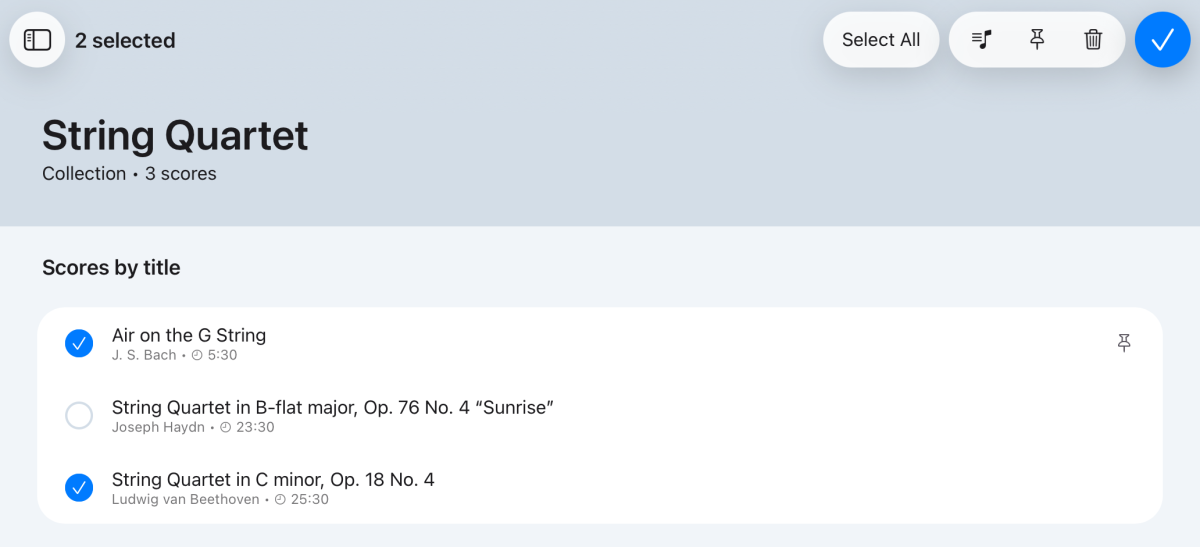
- Tap each score you want. A tick appears beside it, and the top of the screen shows how many you've selected.
- Choose an action from the buttons at the top right of the screen.
- Tap ✓ when you're done.
To pick from one genre, choose it under Filter By before you tap Organise. Select All selects every score listed.
Add several scores to a playlist
- Select the scores in Organise.
- Tap Add to Playlist (the list with a note) at the top of the screen, then choose the playlist.
A message tells you how many were added. A score that's already in the playlist is added again.
Pin or unpin several scores
- Select the scores in Organise.
- Tap Pin (the pin) at the top of the screen. If every selected score is already pinned, it unpins them instead.
In Organise, a pinned score shows a pin at the end of its row; outside Organise, pinned scores are listed under Pinned scores. After each action the selection clears and Organise stays open, so you can carry on.
Delete several scores
- Select the scores in Organise.
- Tap Delete (the bin) at the top of the screen.
- Check the number of scores in the message, then tap Delete to confirm, or Cancel.
Still need help? Email info@soloapps.co.uk.