 Solo Scores
How do I add or remove playlist scores?
A playlist links to scores in your collections rather than copying them, so a score can appear in several playlists and changes to it show everywhere it appears.
Add a score from a collection
- In the collection, tap the score to expand it.
- Tap ⋯, choose Add to playlist, then choose the playlist, or New Playlist... to start a new one with it.
To add several at once, use Organise in the collection. See How do I organise a collection?
Add scores from one playlist to another
- Open the playlist and tap a score to expand it, or tap ⋯ at the top of the screen and choose Organise to select several.
- Tap ⋯ on the score and choose Add to playlist, or in Organise tap Add to Playlist (the list with a note) at the top of the screen.
- Choose the playlist, or New Playlist... to start a new one with those scores.
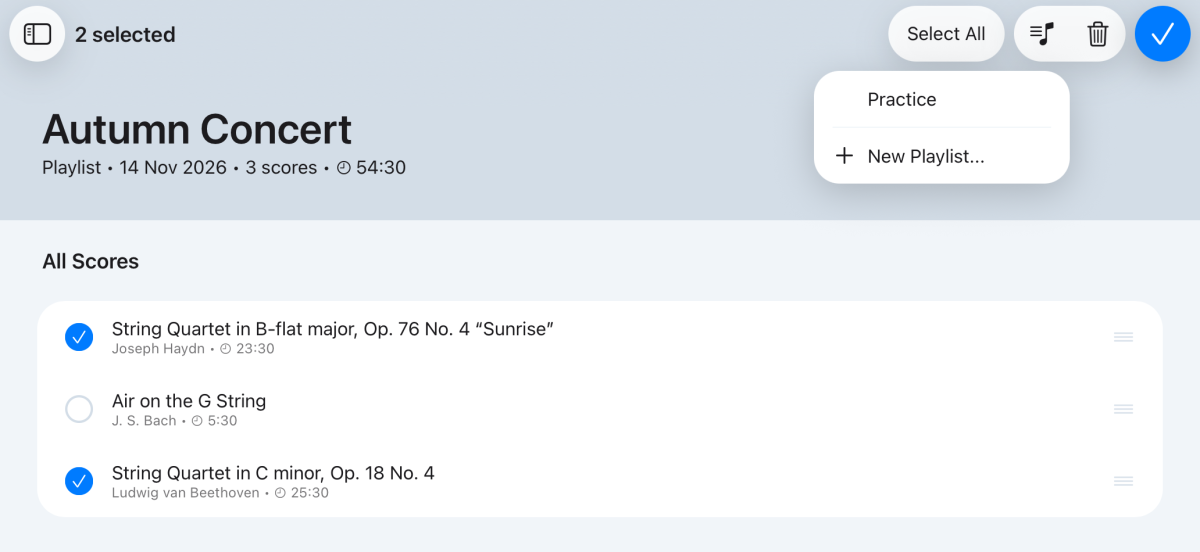
Add scores from inside a playlist
- Open the playlist and tap + at the top of the screen.
- Tap + beside each score you want. Search or filter to narrow the list.
- Tap ✕ when you're done.
Scores already in the playlist show a tick.
Remove scores
- Open the playlist, tap ⋯ at the top of the screen and choose Organise.
- Tap each score you want to remove. A tick appears beside it.
- Tap Remove from Playlist (the bin) at the top of the screen, then tap Remove.
- Tap ✓ when you're done.
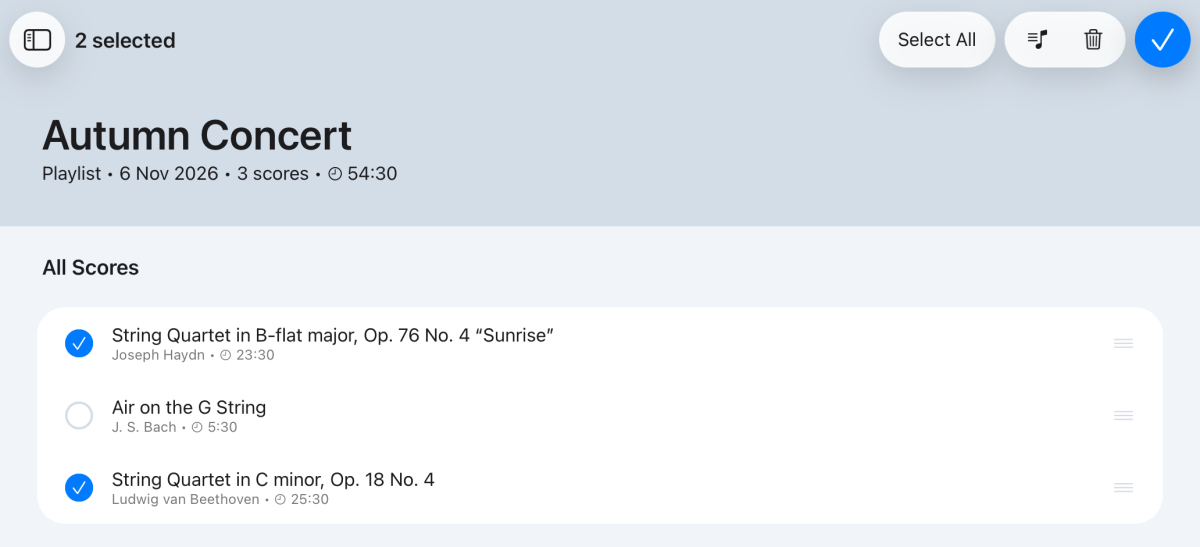
To remove a single score, you can also tap it to expand it, tap ⋯ and choose Remove from playlist.
Still need help? Email info@soloapps.co.uk.