 Solo Scores
How do I add symbols, lines, and text?
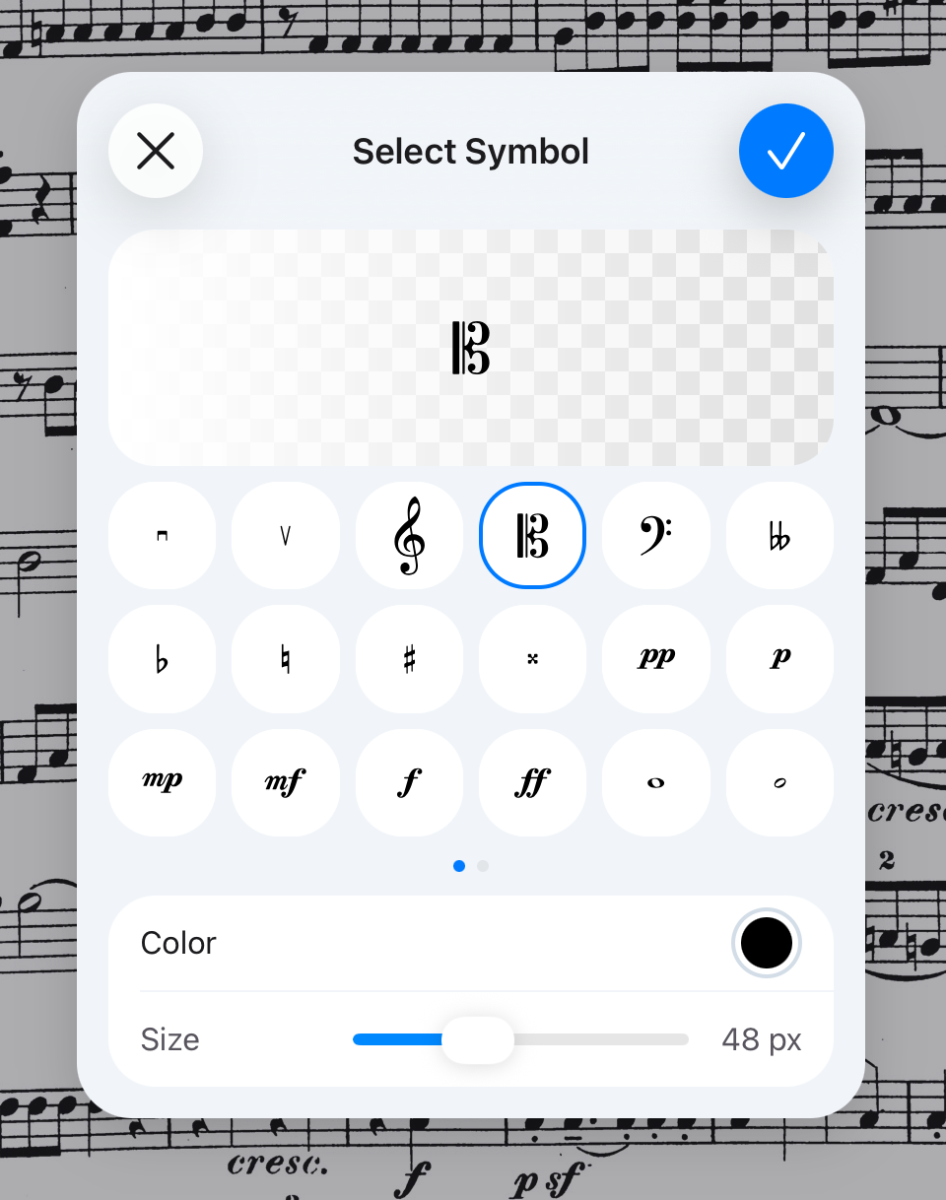
Besides pens, you can place symbols, lines and text. Use the symbol tool for musical and rehearsal symbols, the line tool for straight lines, arrows, brackets, staves and crescendo or diminuendo hairpins, and the text tool for a typed note.
Place a symbol, line or text
- While annotating, choose the symbol, line or text tool.
- To change its options, such as the symbol, line type, colour or size, press and hold the selected tool.
- Tap or drag on the page to place it.
Type text
- While annotating, choose the text tool.
- Tap the page where the text should go, and type.
- To move the box, drag its left handle. To make it wider or narrower, drag its right handle.
- Tap ✓ under the box to place the text, or ✕ to throw it away.
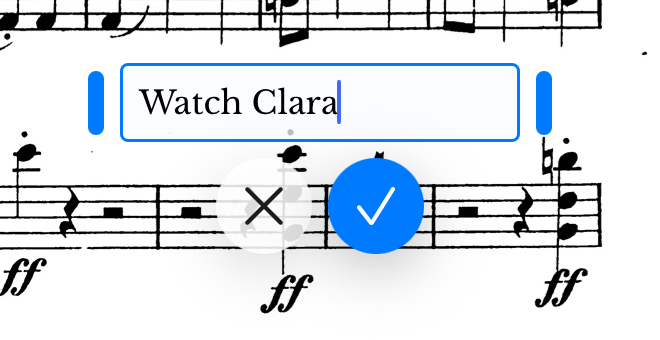
You don't have to tap ✓: choosing another tool, tapping the page outside the box, or tapping ✓ at the top right places the text too.
To change the text's colour, size or alignment, press and hold the text tool while you type.
Still need help? Email info@soloapps.co.uk.